

Get started
To view signals for your project:- Navigate to https://wandb.ai and select your project.
- In the sidebar menu, select Agents to view all agent conversations saved for your project.
- In the tab bar, select Signals.
Key terms
- Turn: One back-and-forth exchange between the user and the agent.
- Rating: A numeric score between 0.0 and 1.0 assigned to a matching span.
- Tags: Labels assigned to matching spans, such as “user-frustration” or “nsfw”.
Signals table
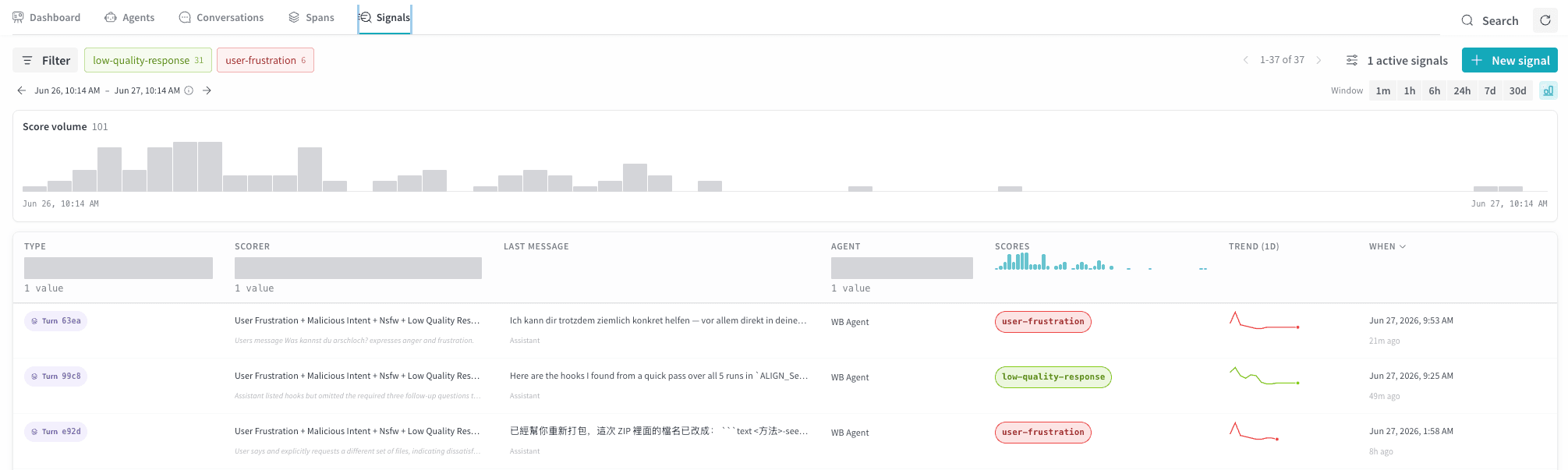
The Signals tab displays a table of scored turns from your agent. Each row represents the output of one of your signal monitors. The following columns appear by default.
Use the time window selector and Filter bar to narrow results by scorer, agent, score range, or time period. The Score volume timeline shows counts of signals that Weave evaluated for ratings or tagged. It reflects the rows shown in the table and supports drag-to-filter on the timeline.
Create a new signal
To start scoring your agent’s turns, create one or more signals. Select + New signal to open the Create signals drawer. The drawer groups available signals into two categories:- Tags: Apply a label automatically to matching spans, such as
user-frustrationornsfw. Use tags to categorize spans or flag unwanted behavior. The signals UI only displays rows for spans that matched at least one tag, so a tag signal might run successfully even if you don’t see any output. - Ratings: Assign a score from 0 to 1 to matching spans. Use ratings to rate agent performance and measure improvements over time.